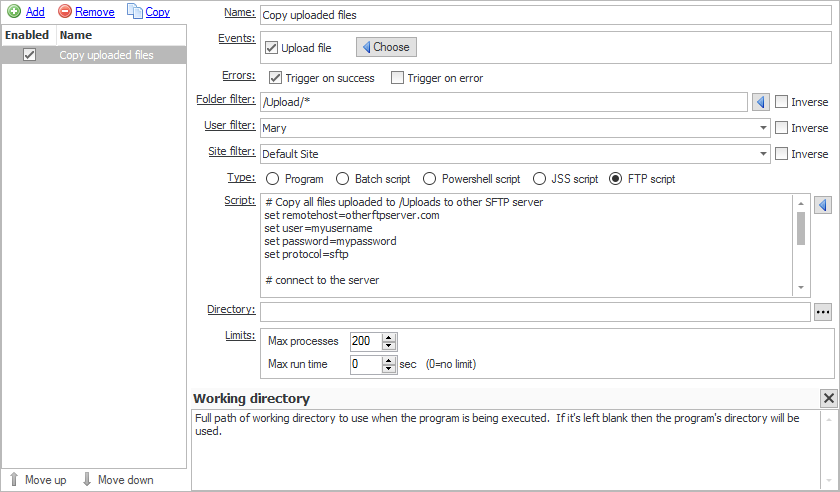
CompleteFTP supports highly customizable, process execution triggers. This means that when an event such as a file upload occurs, a process can be launched (e.g to move a file after it has been uploaded).
In the Process Execution tab, the maximum number of concurrent processes (default 200) and the maximum run time can be set. The latter setting has a default of 0 which means no limit.
The list of current process triggers is displayed in the Process Execution tab. Use Remove to delete triggers, and Add to create a new trigger.
When adding, enter an appropriate name for the trigger, and select which Events the trigger is applicable for. The various fields are described below:
Processes may be triggered by any of the types of events listed below. By default, events are only triggered when an operation, such as a file upload, succeeds, but they may also be triggered on failure. This is determined by the checkboxes labelled 'Trigger on success' and 'Trigger on error'.
Filters restrict events based on a set of criteria that are defined by the administrator. These criteria may be based on (1) the folder in which a file-operation is taking place, (2) the user performing the operation, and/or (3) the site on which the operation is taking place.
The folder- or file-path filter may be used to select the files/folders for which the event should be triggered. By default Windows-style wildcards are used for matching. For example, if the event should be triggered only for files with the extension .dat in the folder /Home/MyUser then the filter should be set to /Home/MyUser/*.dat. If the event should be triggered for files named test.dat in any directory, then the filter should be set to */test.dat.
Filters may be inverted by checking the checkbox labelled 'Inverse'. If this is done then the event will occur for all files/folders that don't match the filter.
Regular expressions (.NET-style) may also be used. To use these, the filter should be prefixed by 'regex:'. Information on .NET regular expressions may be found on the Microsoft(tm) website. Note that multiple filters may be defined using regular expressions using the syntax, regex:^(/Folder1/.*|/Folder2/.*), which would match anything underneath the folders, /Folder1 and /Folder2.
To test that this filter can filter the files/folder whose name only has a number in it:
The main point here is it checks the folder path, so without the path (/Home/user1/...), it won't work.
User can change the [0-9] to [a-z] to see the opposite result of steps 3. and 4. above.
A user filter may be used to select the users for which an event should occur, or if it's inverted, the users for which it shouldn't occur. By default it will occur for all users. Users may be selected simply by checking the box next to them in the dropdown list, which is displayed when the user filter control is clicked.
To test that this filter can filter for the user 'user1' only:
[Enterprise MFT only] A site filter may be used to select the sites for which an event should occur or, if it's inverted, the sites on which it shouldn't occur. By default it will occur on all sites. Sites may be selected simply by checking the box next to them in the dropdown list, which is displayed when the site filter control is clicked.
CompleteFTP supports five types of process triggers:
JSS (Javascript Server-Side) is Javascript combined with a set of API's for common tasks and integration with CompleteFTP. JSS scripts are executed within the CompleteFTP service.
The JSS API's provide access to CompleteFTP's virtual file-system and commonly used functionality, such as FTP/SFTP, HTTP, e-mail and databases. Various macros are available within a JSS process trigger script via properties of the variable called event. These can be inserted into the script via the button to the right of the editor.
JSS permits use of .NET classes (e.g. var xmlDoc = new System.Xml.XmlDocument()) so that the standard .NET libraries are available if required.
For an example on setting up a process trigger, please refer to Step-by-step guide: Move a file to another directory after it's been uploaded.
Macro values such as %FileName% and %LoginFullName% are supplied by remote users (the former from an uploaded file's name, the latter from a user-editable profile field). To prevent a maliciously-crafted value from breaking out of the script and executing arbitrary commands, CompleteFTP replaces characters that are special to the target interpreter with an underscore (_) before substitution. The exact set depends on the trigger type:
As a result, file names or profile fields containing the characters listed above will appear with underscores when substituted into a Batch, PowerShell or FTP script via the old %Macro% form. To use the original, un-altered value in a Batch or PowerShell script, reference it through the environment instead (!FileName! in a batch script, ${env:FileName} in PowerShell — see Using macro values safely below); in a JSS script, read it from the event object.
For Batch and PowerShell triggers, CompleteFTP also makes every macro value available as an environment variable. This is the recommended way to use macro values: because the value is passed to the script through the environment rather than substituted into the script text, it is never altered (no underscore sanitization) and cannot break out of the script. New scripts should use this form; the old %Macro% form is retained only for backward compatibility.
The environment-variable name is the macro name without the surrounding % signs. The date/time macros are the only exception — they are prefixed with Event so they don't collide with cmd's built-in %DATE%/%TIME%: %Date% → EventDate, %Time% → EventTime, %DateAndTime% → EventDateAndTime.
echo File "!FileName!" was uploaded by !LoginUserName! at !EventTime! >> "C:\Temp\uploads.log"
Add-Content "C:\Temp\uploads.log" "File '${env:FileName}' was uploaded by ${env:LoginUserName} at ${env:EventTime}"
The Manager's macro menu inserts the correct form automatically for the selected trigger type. The environment-variable convention applies to Batch and PowerShell only; Program triggers receive macro values as discrete arguments, and FTP scripts use the %Macro% form (with the sanitization above).
For an example on setting up a process trigger, please refer to Step-by-step guide: Move a file to another directory after it's been uploaded.